

Rate editing and delivery
Calibrate powered by AvlingAI
Change rates without touching the science: shapefile viewer, editor and applicator load sheets.
What it does for you
- Open and edit prescription and zone files free; exporting the finished file is the paid step
- Merge files into one: a north and a south prescription become one spread file, with columns matched and overlaps settled by you
- Bulk-edit rates, copy columns and dissolve small polygons automatically
- Load sheets for seeding prescriptions: the crop is read from the file and seed is counted in bags, 80,000 seeds for corn and 140,000 or 130,000 for soybeans
- Applicator load sheets for dry fertilizer and lime with product cost, free to print
- State Plane export for all nine Corn Belt states
- Every change recorded with who, why and when
- Convert a prescription to another product, such as DAP to MAP or MicroEssentials, holding the nutrient you choose and showing what every other nutrient and the tonnage did before anything is written
Works with
 Advanced Scripting
 Fertility Engine
 Farmstead
Walkthrough
How it works, step by step.
Shown with demo fields, made-up rates and made-up prices.
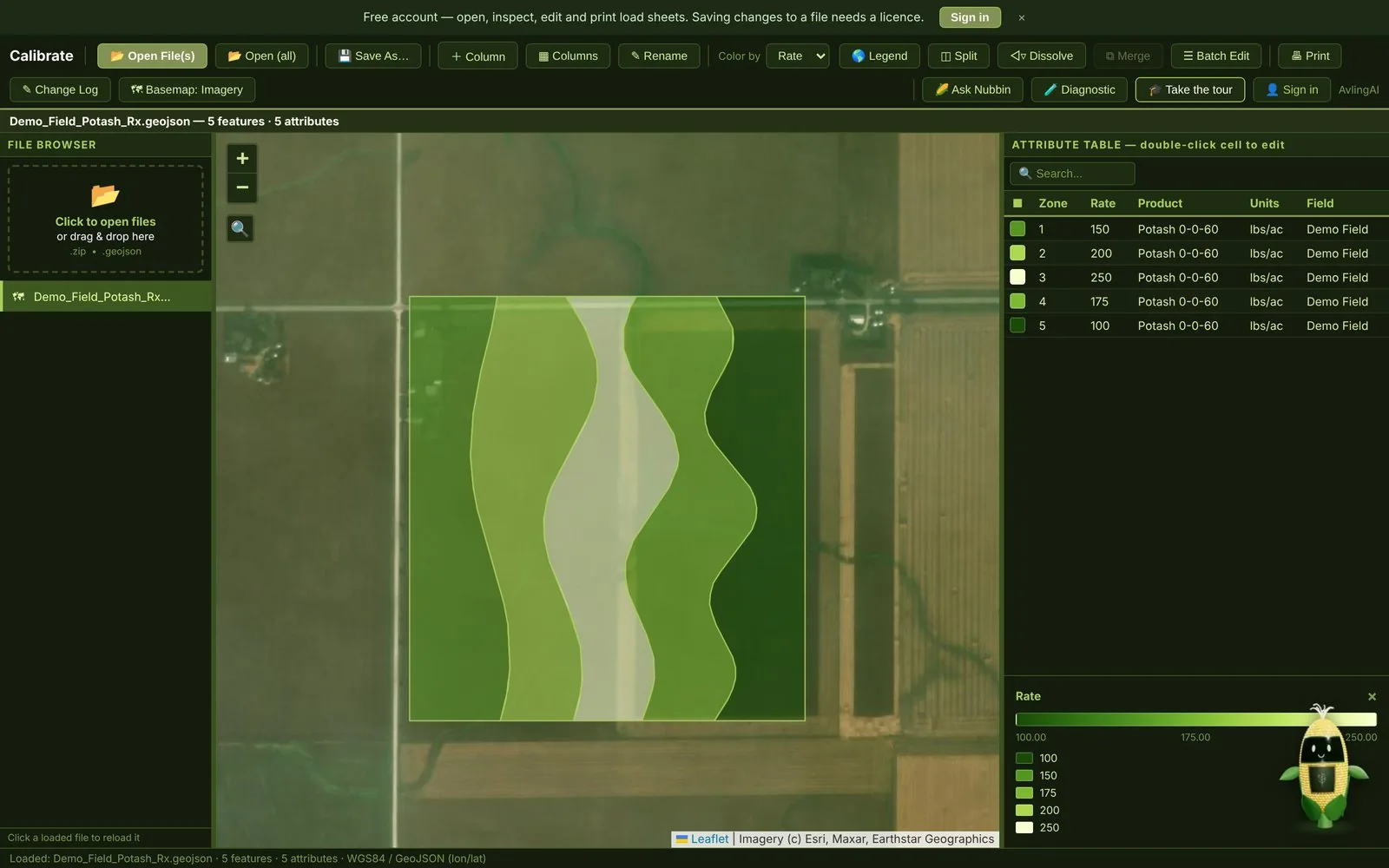
STEP 1
Open the file
Drop in a prescription or zone file. The zones draw over imagery and every attribute lands in a table you can sort and search.
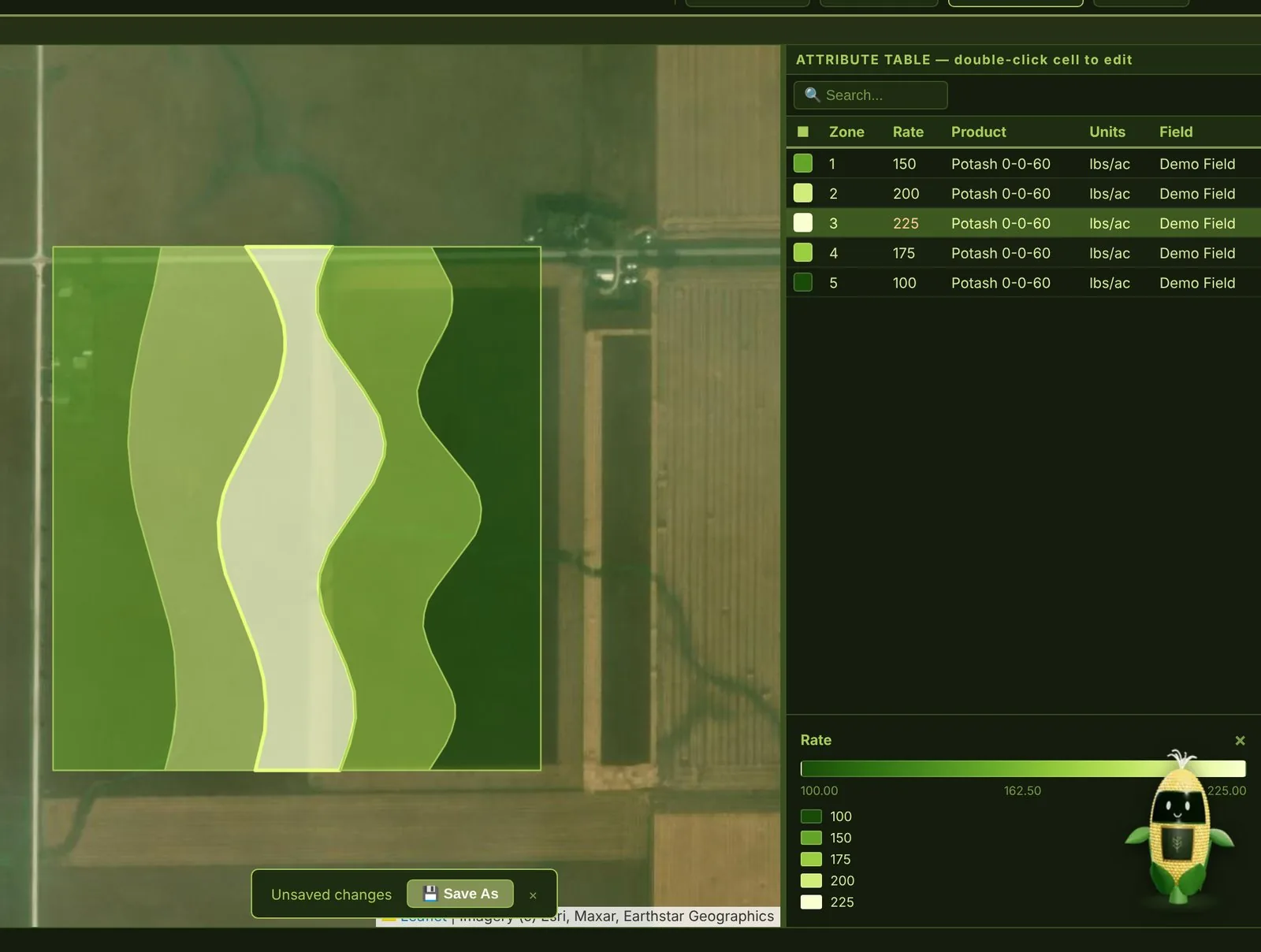
STEP 2
Change a rate
Double-click any cell to change it. The map recolors as you go, and the change is flagged until it is saved.
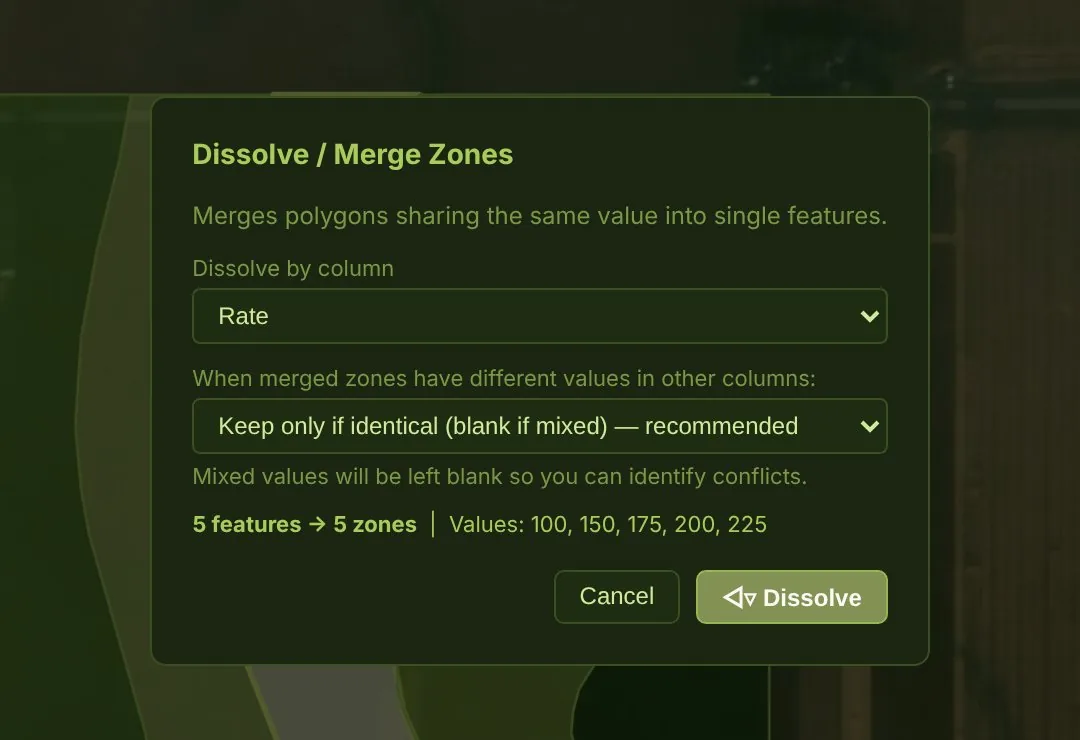
STEP 3
Clean up the zones
Merge zones that share a rate into single features, and see exactly how many zones you will end up with before you commit.
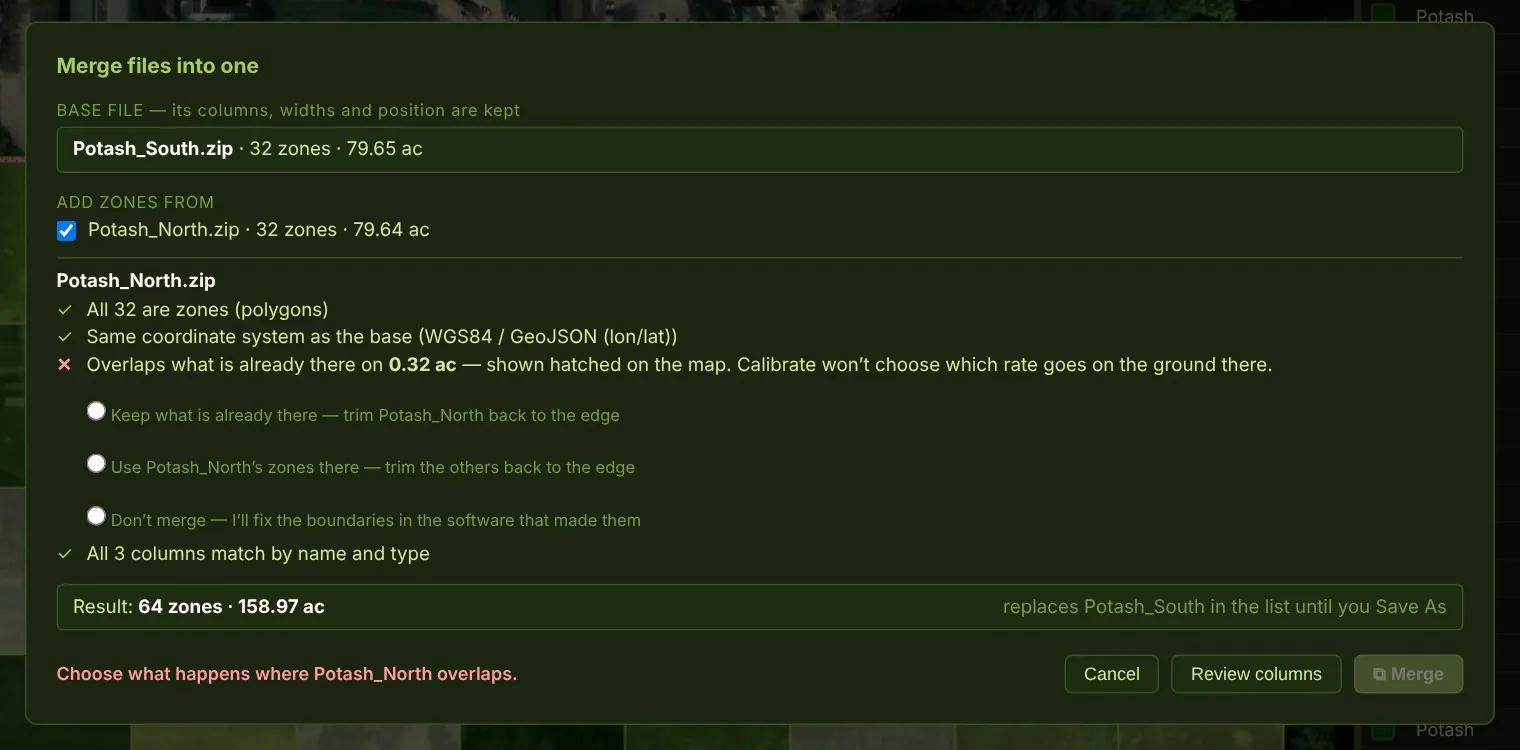
STEP 4
Merge two files into one
A north and a south prescription that need to go out as one spread file? Merge checks the zones, the coordinate system and the columns, and where the files overlap it asks you which rate goes on the ground.
STEP 5
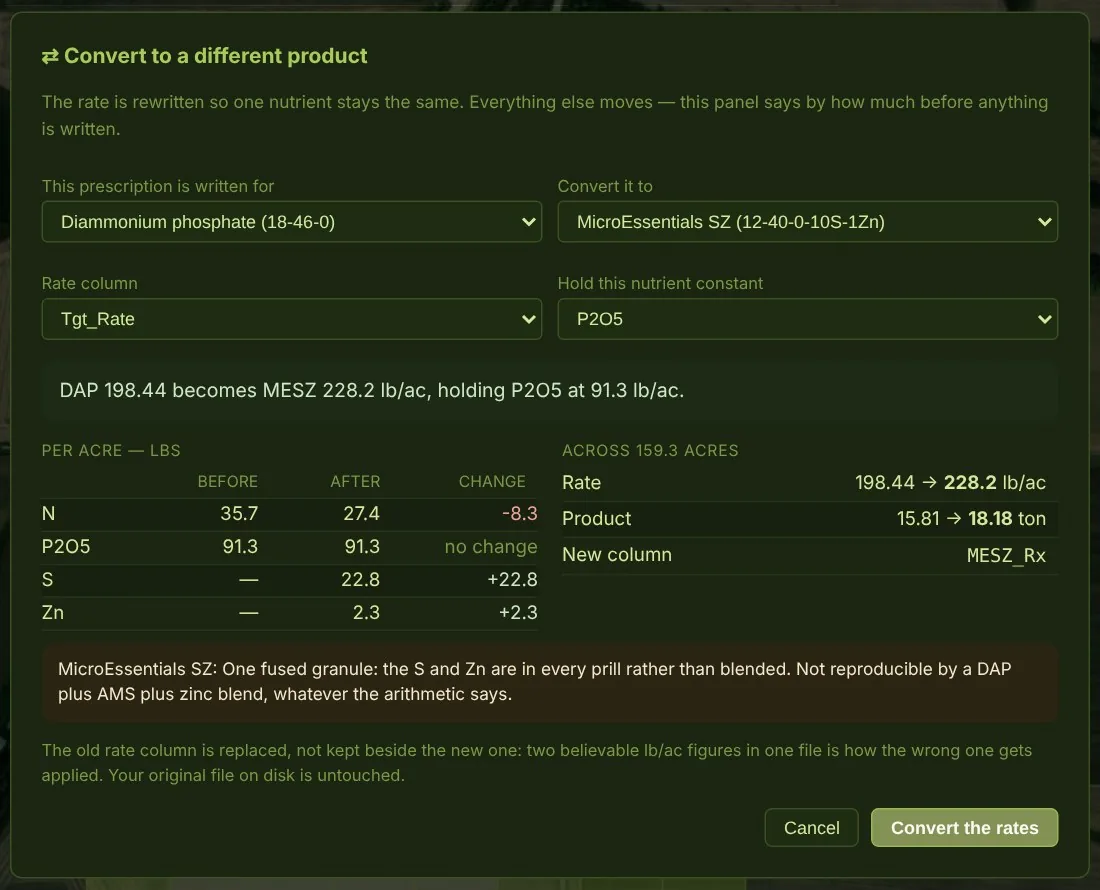
Convert to a different product
The script came in as DAP and the bin holds MicroEssentials? Pick the product, choose which nutrient to hold, and Calibrate shows what happens to N, P2O5, S and zinc and to the tons on the truck before it writes a single rate.
STEP 6
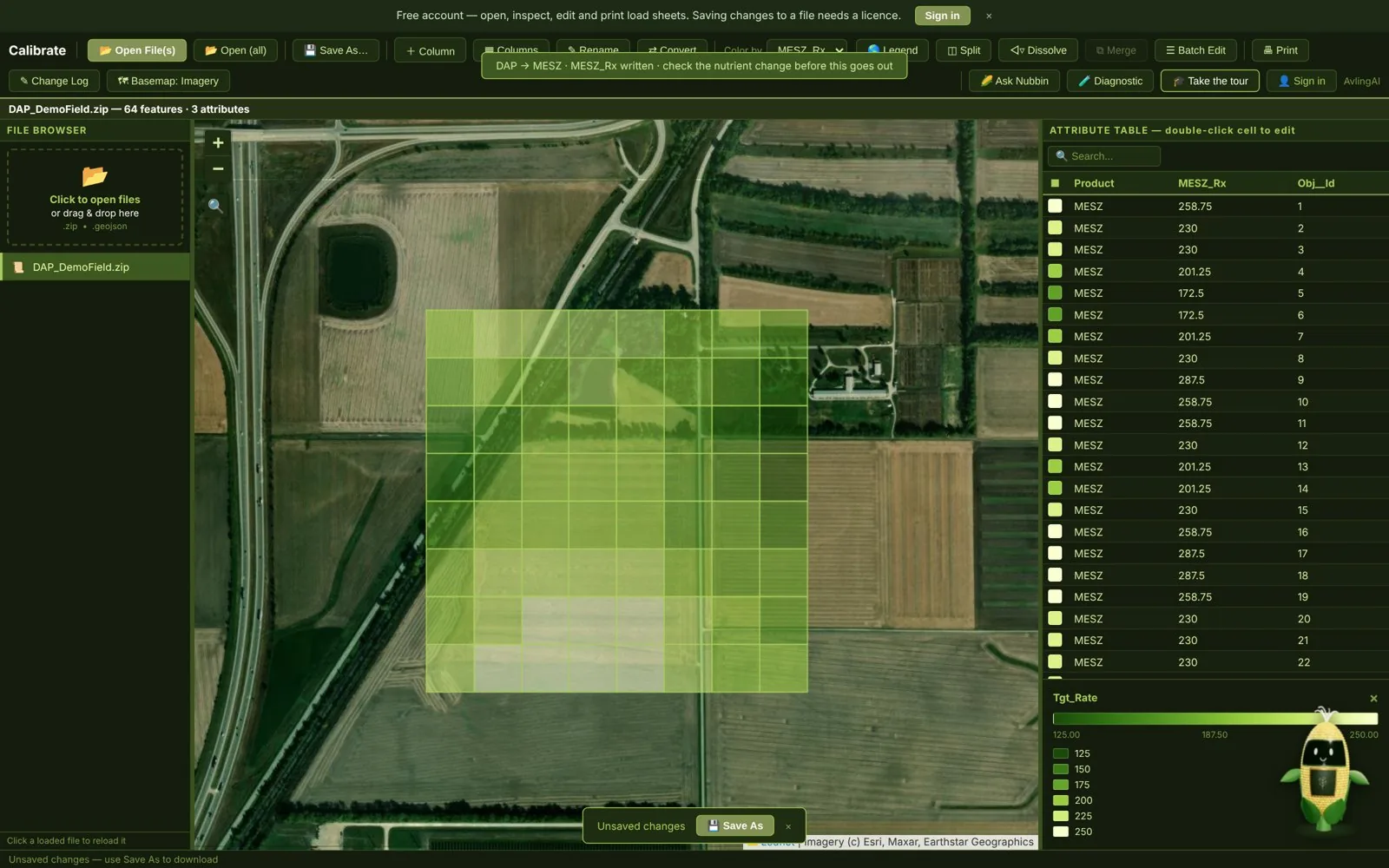
One new rate column, named for the product
The rates are rewritten into MESZ_Rx and the product column changes with them. The old column is replaced rather than kept beside it, so nobody loads the wrong one, and your original file is untouched.
STEP 7
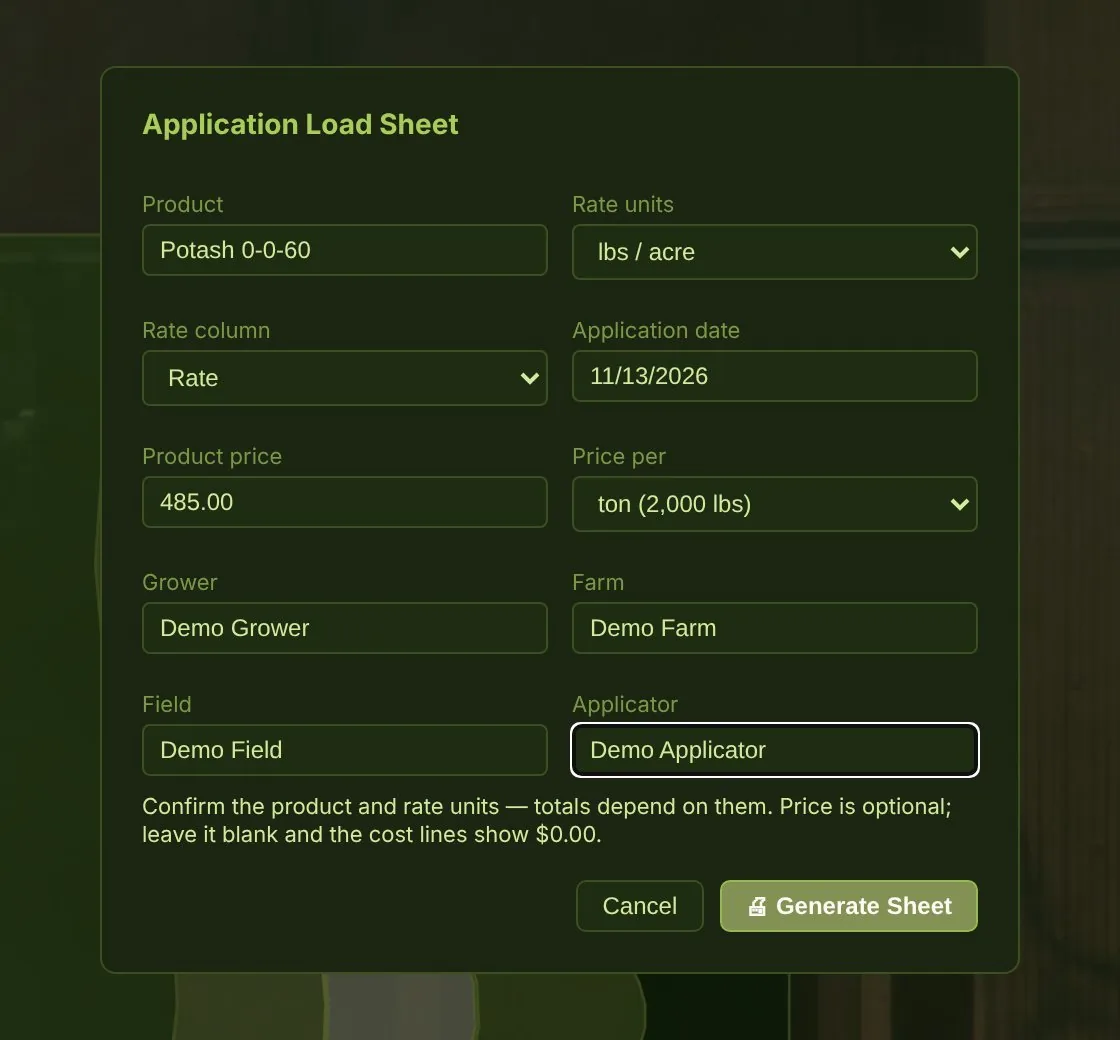
Set up the load sheet
Enter the product, rate units and price. Grower, farm and applicator are optional.
STEP 8
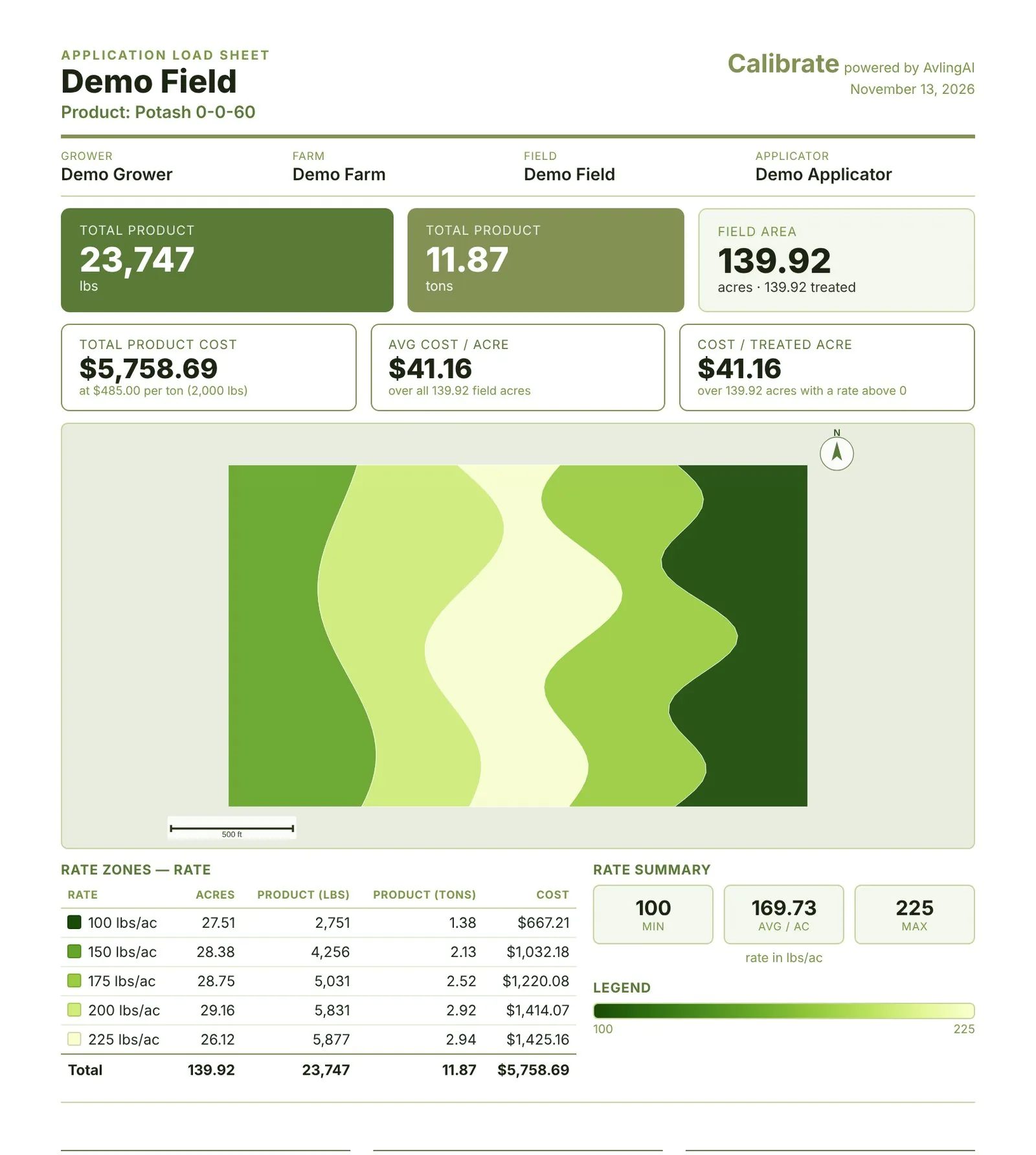
Hand it to the applicator
Calibrate works out product and cost for every zone, total tons, and cost per acre, with the map and a place to sign off. Print it or save it as a PDF, free.
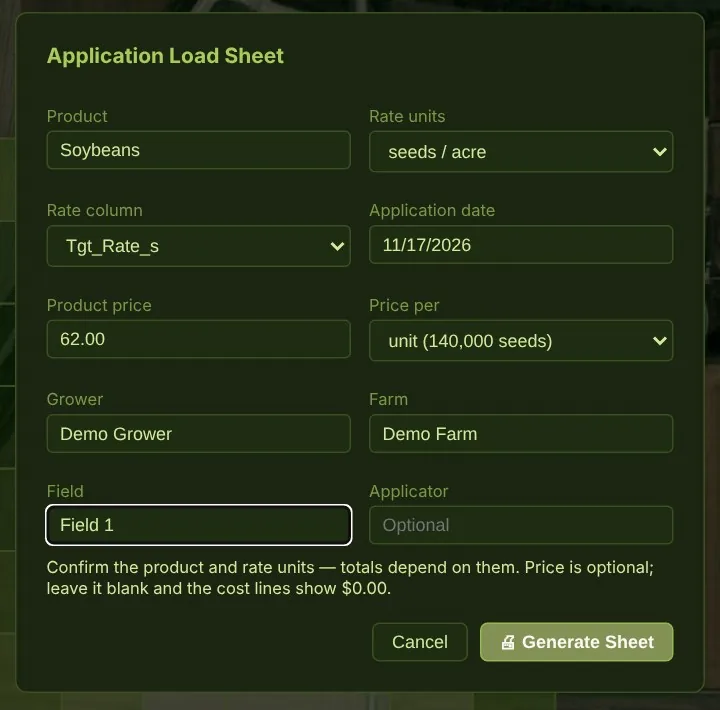
STEP 9
Seeding prescriptions, read as seed
Open a planting prescription and Calibrate reads the crop and the rate column from the file itself, so seeds per acre are never mistaken for pounds.
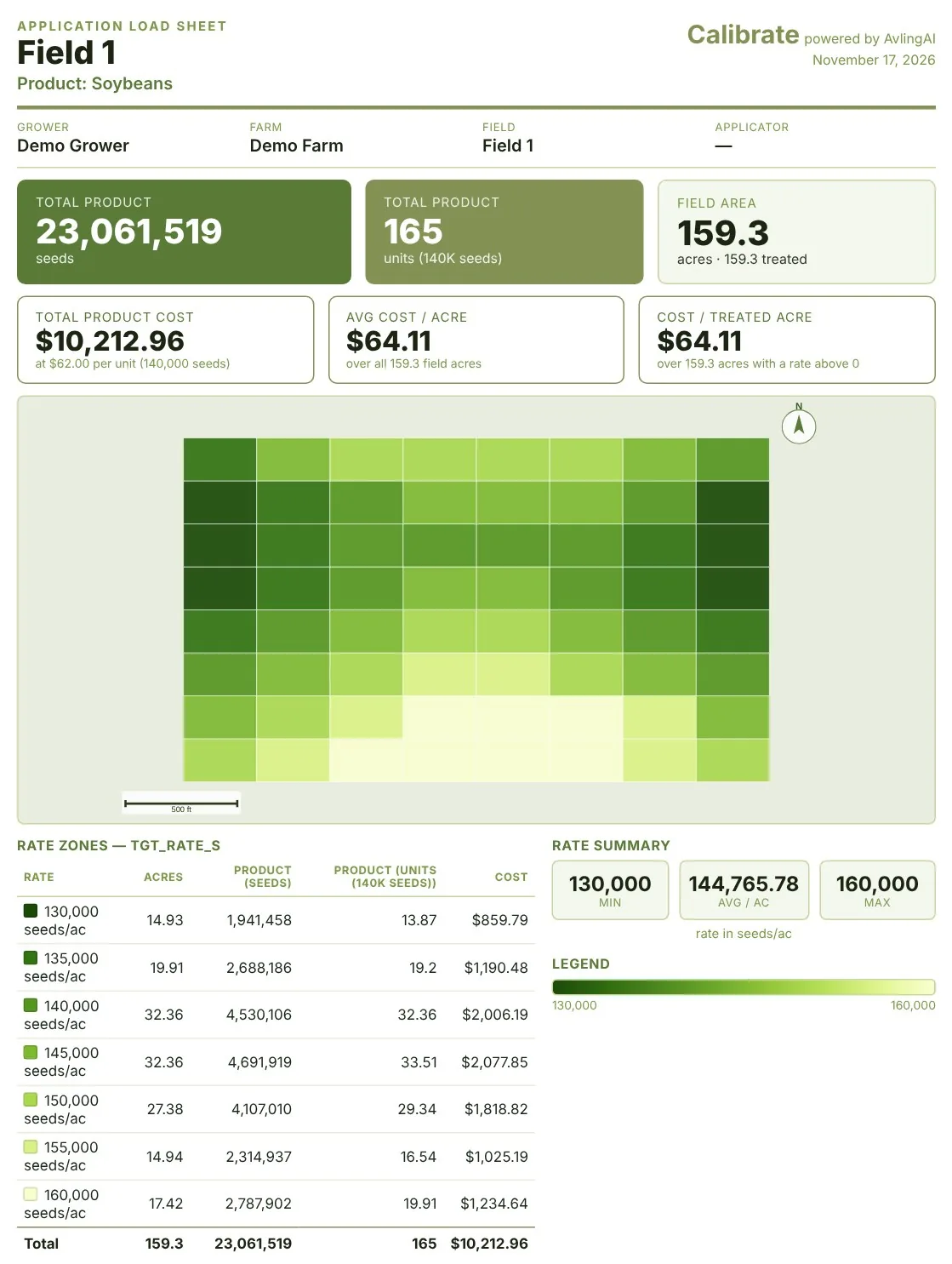
STEP 10
Bags, not pounds
The load sheet counts seed in bags for the crop in the file, with seed cost by zone and per acre, ready for the planter.
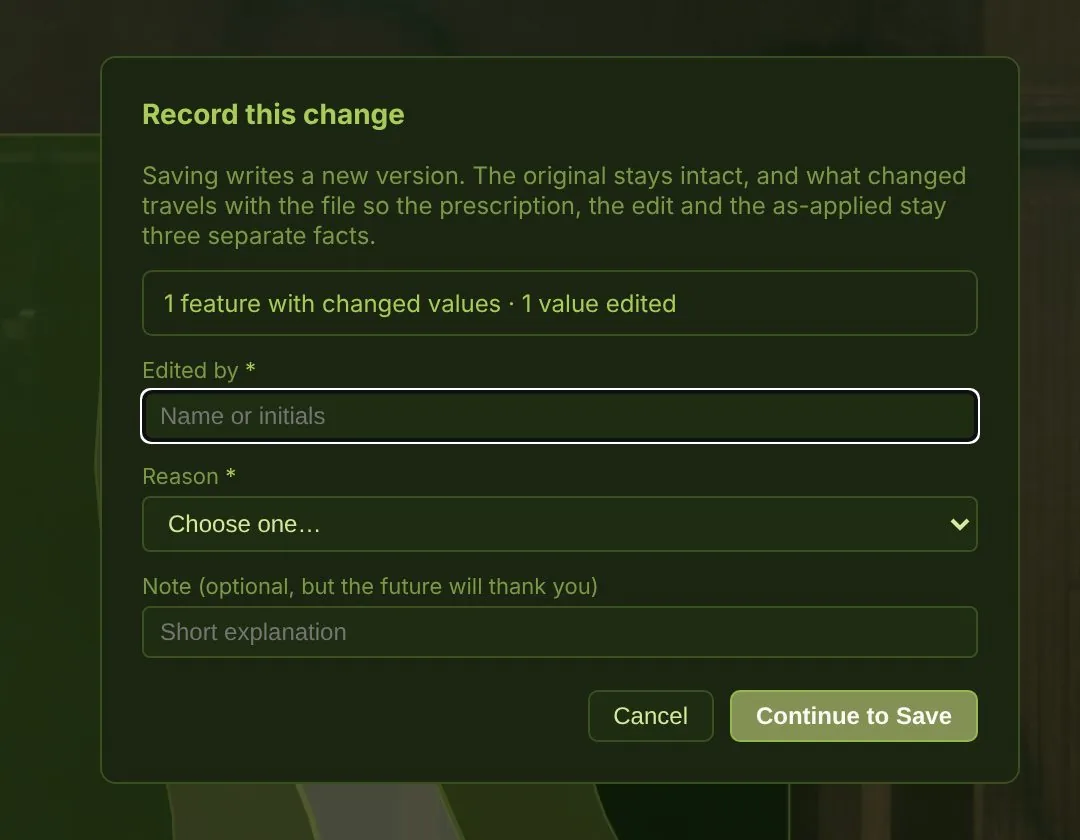
STEP 11
Save with a record
Saving writes a new version. The original stays intact, and who changed what, and why, travels with the file.

STEP 12
Ask Nubbin
Stuck on a step? Ask Nubbin how to do it, in plain words or by voice, without leaving the map.
Want to see Calibrate on your acres?
Talk with us
Ask Nubbin
powered by AvlingAI
Howdy. I'm Nubbin. Ask me what any AvlingAI module does, which one fits your work, or how to get started.